Due to the existing Operations Orchestration (OO) summary report’s data retention being limited to approximately two weeks, which hindered historical analysis requiring at least one month of data, a solution leveraging Operations Bridge Reporter (OBR) was required. This involved the creation of a Database Content Pack within OBR, designed to pull data directly from the OO Database.
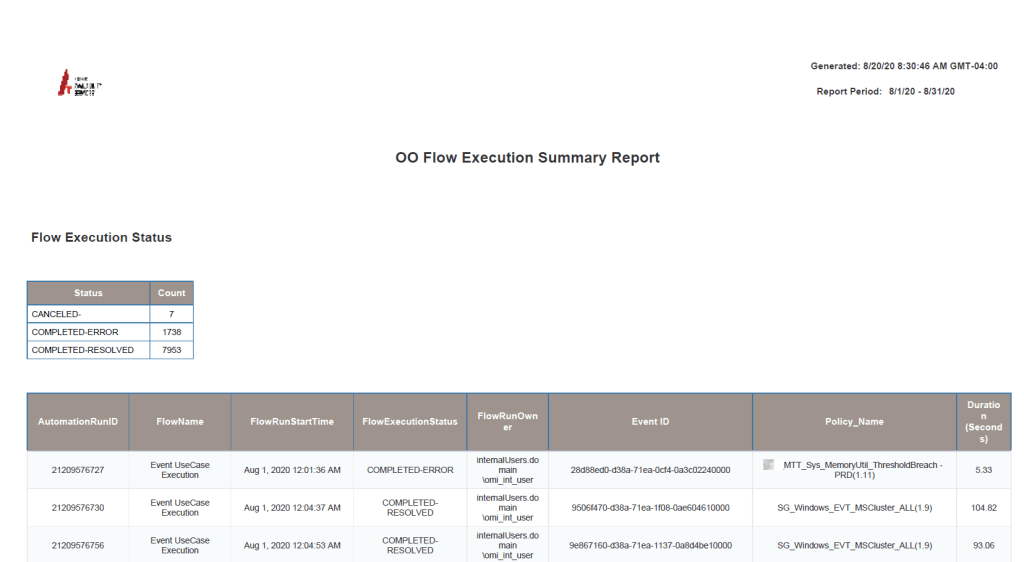
The primary objective of this OBR-based solution was to develop a report providing a concise overview of OO flow execution status, specifically for flows integrated with Operations Bridge Manager (OBM). The report must enable users to:
- Analyze success and failure ratios of OO Flows.
- Identify problematic policy-related OO flows.
- Track the count of successful and failed OO Flow executions over a specified time period.
Prerequisites/Key System Dependencies:
- Operations Bridge Reporter (OBR)
- Operations Bridge Manager (OBM)
- OO Database
I wrote a content pack will periodically collects records from OO database tables OO_EXECUTION_SUMMARY and OO_EXECUTION_BOUND_INPUTS
Below is the final report from OBR:
You can download Content Pack attached below:
Content Pack Deployment:
PART A: Installing Content Pack
a. Copy the file to /opt/HP/BSM/PMDB/packages partition on Operation Bridge Reporter(OBR) Core Application Server:
b. Extract above copied zip file on OBR Core server using below commands:
cd /opt/HP/BSM/PMDB/packages
unzip OOFlowExectionSummary.zip
c. Run the below commands:
find /opt/HP/BSM/PMDB/packages/OOFlowExectionSummary -type f -name ".xml" -print0 | xargs -0 dos2unix find /opt/HP/BSM/PMDB/packages/OOFlowExectionSummary -type f -name ".pro" -print0 | xargs -0 dos2unix
find /opt/HP/BSM/PMDB/packages/OOFlowExectionSummary -type f -name ".txt" -print0 | xargs -0 dos2unix find /opt/HP/BSM/PMDB/packages/OOFlowExectionSummary -type f -name ".pkg" -print0 | xargs -0 dos2unix
find /opt/HP/BSM/PMDB/packages/OOFlowExectionSummary -type f -name "Stage_" -print0 | xargs -0 dos2unix find /opt/HP/BSM/PMDB/packages/OOFlowExectionSummary -type f -name ".sql" -print0 | xargs -0 dos2unix
d. Login to OBR Application Admin Console, in the Administration Console, click Content Pack Deployment.
Make the following selections:
- ETL_OOFlowExectionSummaryDomain
- OOFlowExectionSummaryDomain

e. Click Install / Upgrade to install the Content Packs
An Installation Started status appears in the Status column for Content Pack that is currently being installed.
The Content Pack Deployment page automatically refreshes itself to display the updated status. Once the installation completes, an Installation Successful status appears.
f. Configure OO Database as Data Source (using Generic Database)
- In the Administration Console, click Data Source Configuration > Generic Database. The Generic Database page appears.
- Click Create New to create the OO data source connection. The Connection Parameters dialog box appears.
- Specify or type the following values in the Connection Parameters dialog box:
Host name ->
Port-> 1433
TimeZone ->
Database type -> MSSQL
Domains -> OOFlowExectionSummaryDomain
URL -> jdbc:jtds:sqlserver://:1433/;instance=
Database ->
User name ->
Password ->
Collection Station ->
g. Click OK.
h. Click Test Connection to test the connection
i. Click Save to save the changes. A Saved Successfully message appears in the Information message panel
j. Also set the Schedule Frequency to 2 Hours

PART B: Deploying Reports
a. Copy the below file to local machine where you can access SAP CMC console:
b. Enter the OBR BI CMC URL and Login as Administrator
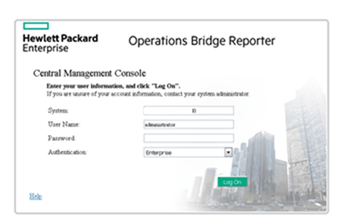
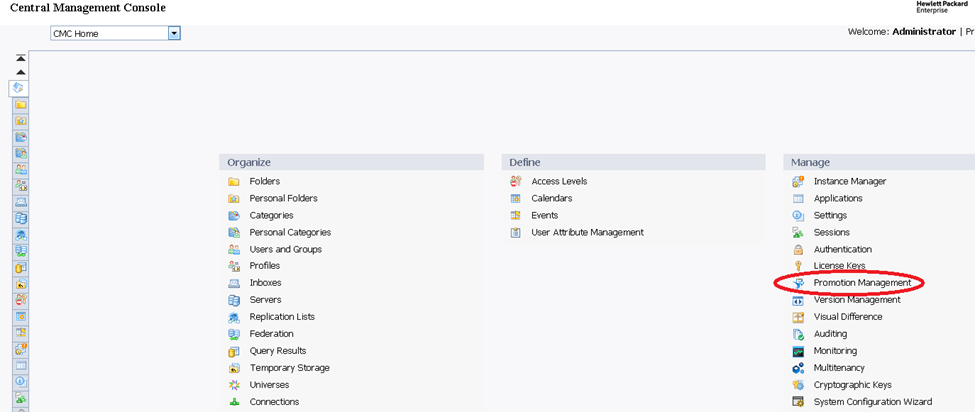
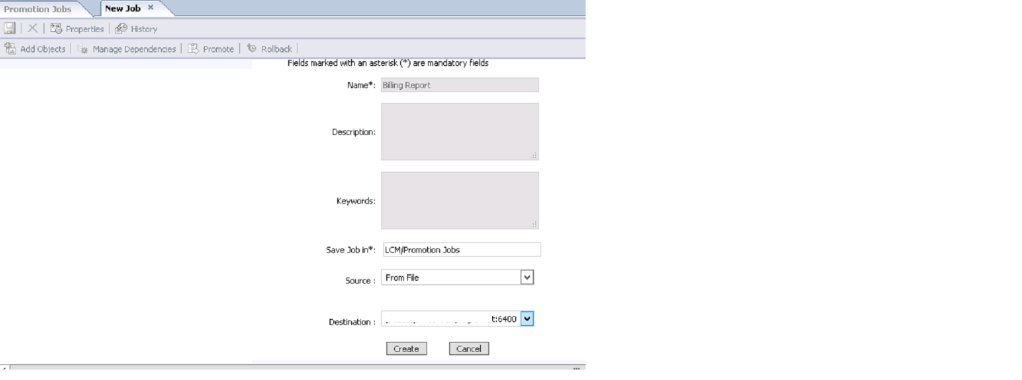
c. Click Promotion Management.
d. Click Import -> Import File.
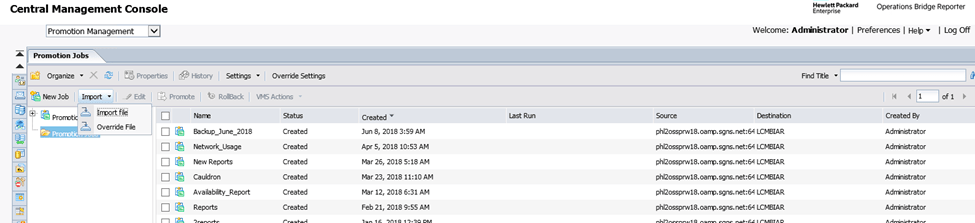
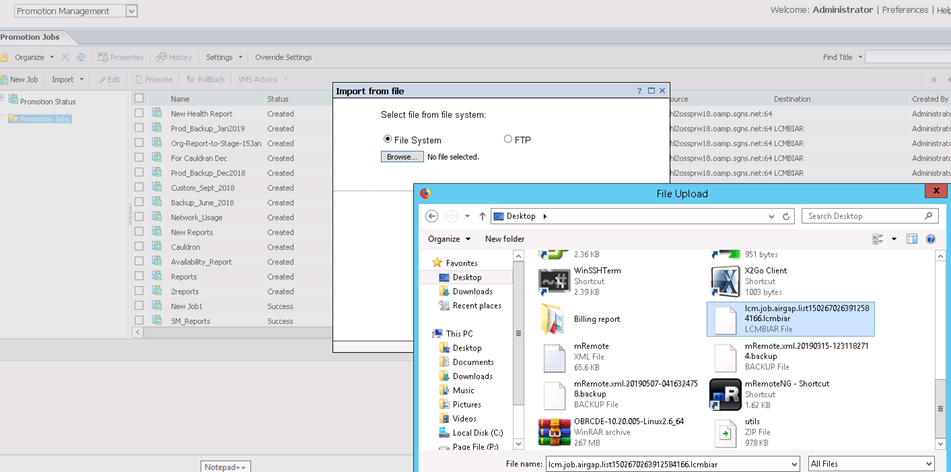
e. Select File System and Browse
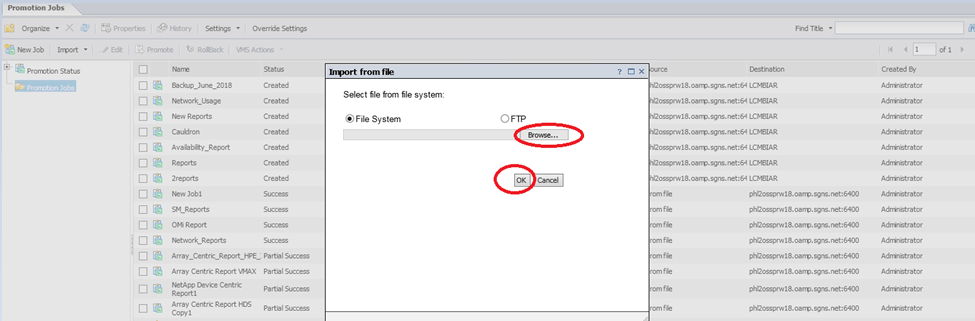
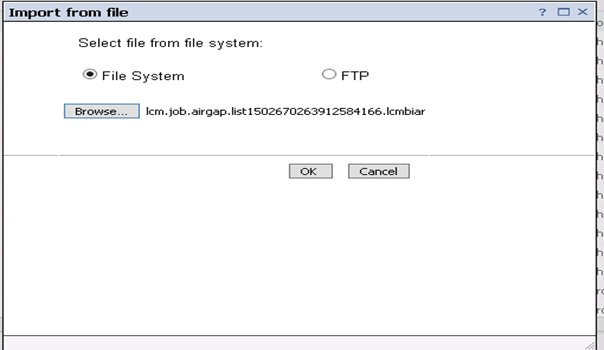
f. Select the BIAR from the location and Click OK
g. Click the Destination and select the Destination as Login to New CMS. And enter the destination system Click on LOGIN.
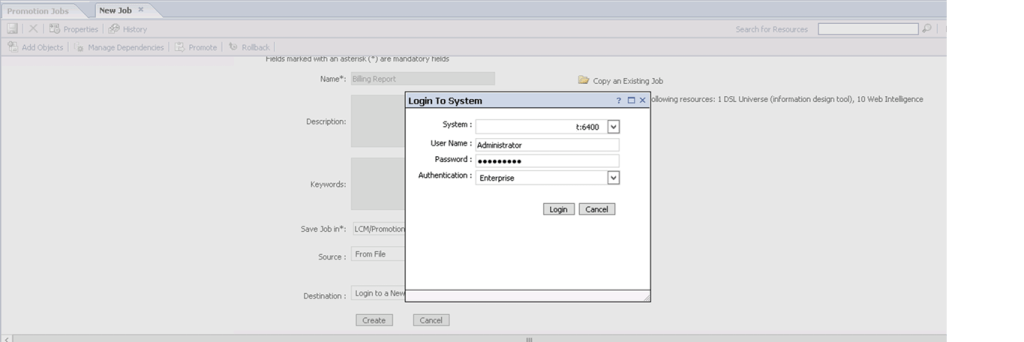
h. Click on Create
 Telemetry Compass
Leave a comment